AirPods Wireless Charging Case Not Working
Did you know about AirPods Wireless Charging Case Not Working, if yes then this article is for you. We will be discussing. Read on for more.
Apple’s AirPods are renowned for their stylish appearance and practicality, particularly the wireless charging case that makes charging them a breeze. However, what happens if the wireless charging case for your AirPods malfunctions? There is no light, no sound, and no charge when you place it on the charger.
You’re not alone, so don’t worry. This problem is common among AirPods users, but the good news is that it’s frequently simple to resolve. We’ll explain why your AirPods wireless charging case might not be functioning in this tutorial, along with the best solutions for getting it to start charging again.
1. Check If You’re Using a Compatible Wireless Charger
First things first — not all wireless chargers work perfectly with AirPods.
- Make sure you’re using a Qi-certified wireless charger.
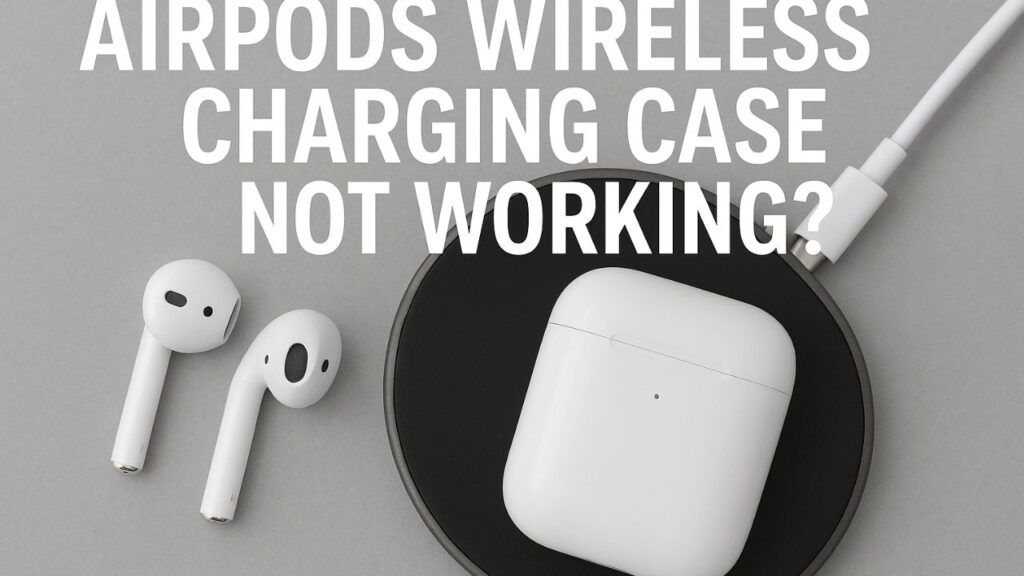
- Place your AirPods case flat on the charging pad, with the status light facing up.
- Ensure the charging pad is plugged in properly and the power adapter is functioning.
Use the same pad to test any other wireless-charging devices you may have, such as an iPhone.
Your AirPods case, not the charger, is probably the problem if your iPhone charges but your AirPods don’t.
2. Check the Charging Light Indicator
When you place your AirPods case on a wireless charger:
- The status light should turn amber (orange) for a few seconds — this means it’s charging.
- If you see no light, the case might not be aligned correctly, or it may have a deeper issue.
Try moving the charging pad a little bit; even a tiny change can have a significant impact.
Try charging the case with a Lightning cord if the light still doesn’t come on.
3. Clean the Case and Charger Surface
Dust and debris can obstruct the connection between your AirPods case and the charger, despite the fact that it may seem straightforward.
- Wipe the bottom of your AirPods case with a soft, dry cloth.
- Clean the surface of your wireless charging pad.
- Avoid using water or cleaning sprays — just a microfiber cloth will do.
After cleaning, try placing your case again on the pad to see if it begins charging.
4. Make Sure the Case Supports Wireless Charging
If you’re using older AirPods models, not all cases support wireless charging.
Here’s a quick check:
- A wireless charging case has a small LED light on the front of the case.
- A standard case has the LED light inside, between the AirPods slots.
If your case doesn’t have the front LED light, it’s not a wireless model — and it won’t work with a wireless charger.
5. Check for Software Glitches
Sometimes, a software or firmware bug can affect how the AirPods communicate with the charger.
Try these quick steps:
- Place both AirPods in the case.
- Connect the case to a Lightning cable for at least 15 minutes.
- Keep your AirPods close to your iPhone and ensure Bluetooth is on.
- Go to Settings → Bluetooth → AirPods → About to check for a firmware update.
If an update is available, install it.
This can sometimes restore proper charging function.
6. Reset Your AirPods Case
If your AirPods still refuse to charge wirelessly, try a full reset.
Here’s how:
- Put both AirPods in the case.
- Press and hold the setup button on the back of the case for about 15 seconds, until the light flashes amber, then white.
- Reconnect your AirPods to your iPhone or iPad.
After resetting, test the wireless charging again.
Many users find this step fixes small hardware or software glitches.
7. Avoid Using Thick or Metal Phone Cases (If Charging Together)
A thick phone case or metal ring holder may prevent your iPhone and AirPods from charging simultaneously on a dual wireless pad.
Check to see if your AirPods begin charging once more by taking off your phone case.
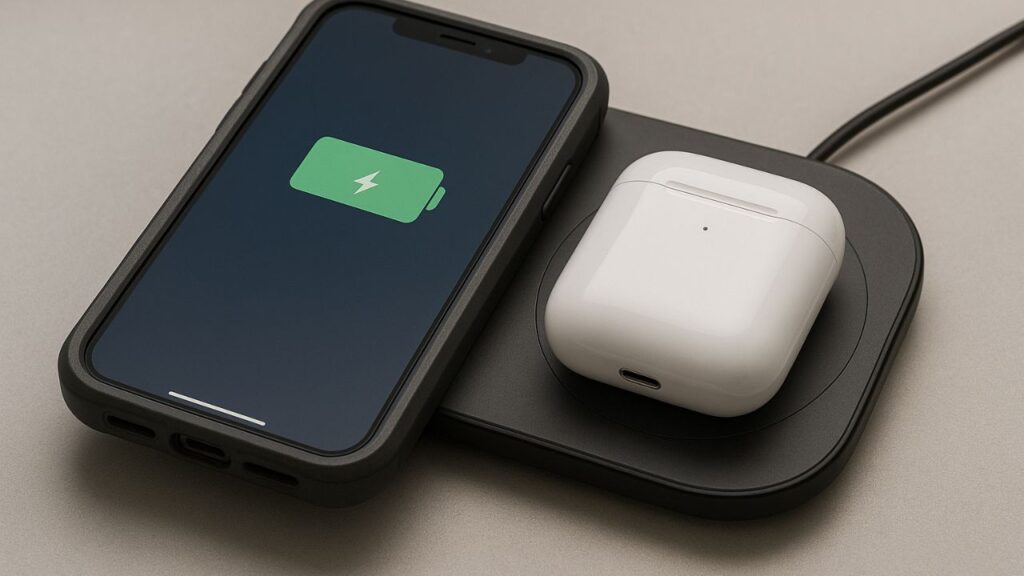
Due to their sensitivity, wireless chargers can malfunction if something obstructs the magnetic connection.
Also Read About Conan Exiles Cross-Generation Support (PS4, PS5, Xbox One & Xbox Series X/S) — 2026 Guide
8. Try a Different Cable, Adapter, or Charger
Sometimes the issue isn’t with your AirPods or their case at all — it’s with the charger setup.
- Use the original Apple Lightning cable and adapter.
- If you’re using a third-party wireless pad, try a different brand or wattage.
- Make sure the adapter outputs at least 20W for optimal power delivery.
Low-quality or underpowered chargers may not deliver enough energy for the case to detect charging.
9. Check for Physical Damage or Water Exposure
The wireless charging coil or battery within your AirPods case may be harmed if it has been dropped or submerged in water.
Signs of damage:
- Case feels unusually hot
- No LED light at all
- AirPods disconnect randomly
The best course of action in that situation is to see an Apple Authorized Service Provider or get in touch with Apple Support. If a replacement or repair is required, they can examine your case.
10. When All Else Fails — Go Wired or Replace the Case
If you’ve followed all the instructions above and your AirPods wireless charging case is still not functioning, there may be a hardware problem.
You can:
- Continue using a Lightning cable to charge.
- Or buy a replacement wireless charging case from Apple or trusted resellers.
Depending on the model and warranty, the replacement case typically costs between ₹8,000 and ₹10,000 in India (or roughly $70 to $90 worldwide).
Conclusion
It’s not necessarily a sign that your AirPods wireless charging case is dead.
Most of the time, the issue is caused by software errors, debris, or charger alignment, all of which are simple to resolve at home.
Start with basic inspections, such as cleaning, moving, or switching to a new charger.
If nothing works, you can find out if your case needs to be replaced or repaired with a fast visit to Apple Support.