
Getscreen.me
Discover our Getscreen.me review covering remote desktop features, pricing, security, pros and cons, and whether this remote access tool is right for you.
Remote computer access has become an important part of modern work. Whether you are an IT professional, freelancer, business owner, or remote worker, accessing another computer without being physically present can save time and simplify everyday tasks.
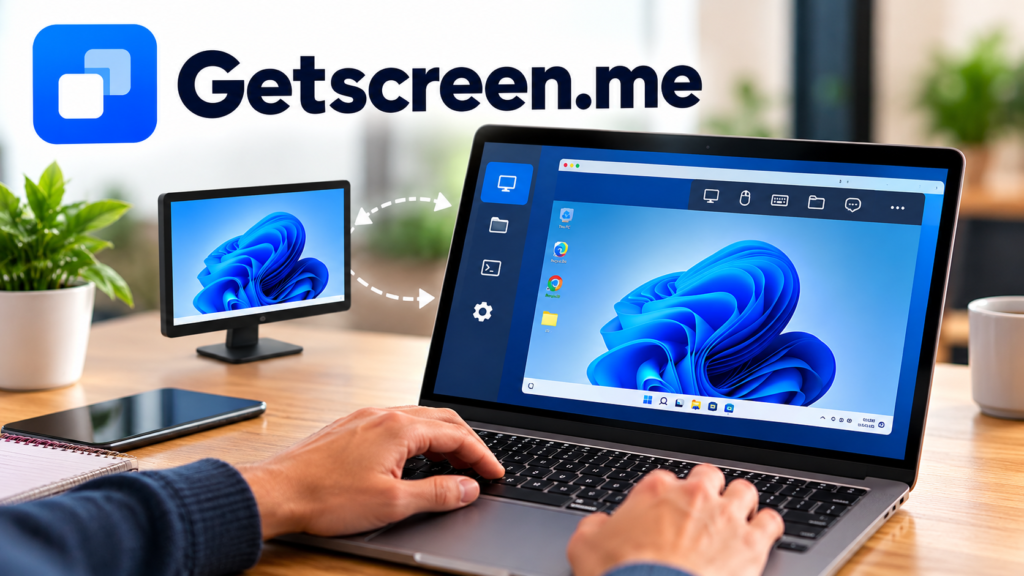
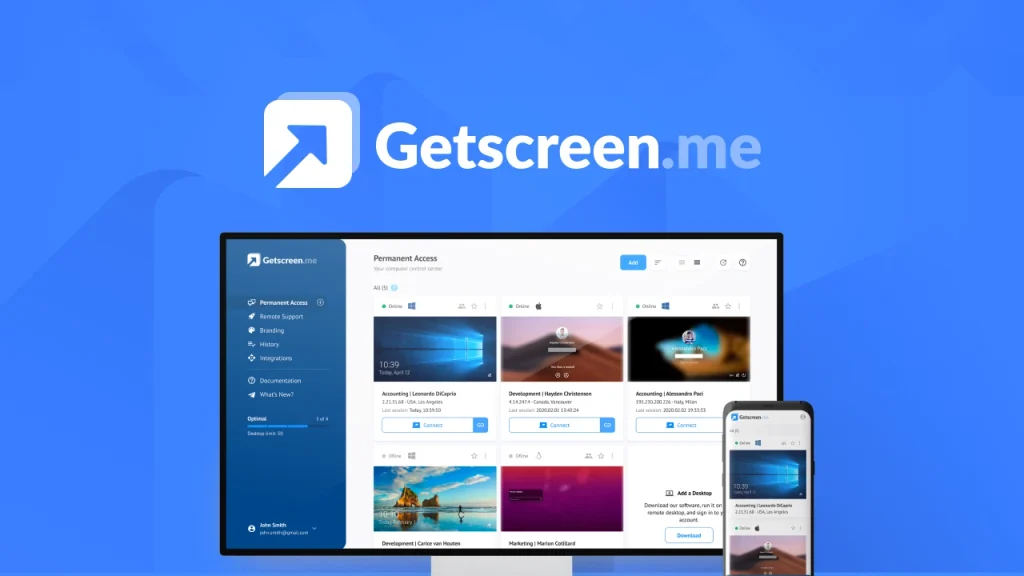
Getscreen.me is a browser-based remote desktop solution designed to help users connect to and manage remote devices. It supports permanent remote access, temporary support sessions, file transfers, remote terminal access, and other tools for IT administration and technical support.
Unlike traditional remote desktop solutions that may require software on both devices, Getscreen.me allows the person connecting to a remote computer to use a web browser. Depending on the selected feature and setup, the remote device may still need an agent application.
In this review, we will explore Getscreen.me’s main features, potential benefits, pricing considerations, security options, advantages, disadvantages, and alternatives to help you decide whether it suits your needs.
What Is Getscreen.me?
Getscreen.me is a remote access platform that enables users to view and control computers and compatible devices over the internet. It is designed for personal use, remote work, business operations, and professional IT support.
The platform offers browser-based access, making it convenient for users who want to connect to a remote computer without installing a full remote desktop application on the device they use to connect.
Its features are relevant to people who regularly troubleshoot computers, manage office devices, provide technical assistance, or need to access their own machines while travelling.
For example, imagine you are away from your office but need to open a document stored on your work computer. With an appropriately configured remote access connection, you can connect from another location and work with the remote system.
Official website: https://getscreen.me/en/
Key Features of Getscreen.me
1. Browser-Based Remote Desktop Access
One of Getscreen.me’s main advantages is browser-based remote access.
Users can open a supported web browser and connect to a remote device using the appropriate access method. This can reduce the need to install a complete remote desktop application on every computer used to initiate a connection.
This feature may be useful for freelancers, remote employees, IT administrators, and people who work across multiple locations.
It can also make temporary access more convenient when working from a computer that does not belong to you, provided you have permission to use that device.
2. Permanent Remote Access
Getscreen.me supports permanent remote access for devices that need to remain available for future connections.
This can be useful when you regularly access an office computer, manage a remote workstation, or maintain a computer that runs important applications.
Once the device is configured correctly, you can connect remotely without requiring someone to approve every individual connection, depending on your access settings.
However, unattended access should always be configured carefully. Use strong authentication, restrict access to trusted users, and avoid leaving sensitive devices accessible to unnecessary accounts.
3. One-Time Remote Support
Technical support professionals often need to connect to a customer’s computer to diagnose a problem or demonstrate a solution.
Getscreen.me offers quick remote connection capabilities designed for these situations.
A support session can help a technician investigate software errors, explain application settings, or guide a user through a technical issue without travelling to their location.
Availability depends on the plan and connection method. Check the current plan details before choosing Getscreen.me for commercial customer support.
4. Remote File Management and Transfers
Moving files between computers can be inconvenient when working remotely.
Getscreen.me includes a file manager that can help users browse remote files and transfer supported files between devices.
Potential uses include:
- Accessing documents stored on another computer.
- Moving work files between approved devices.
- Retrieving files while travelling.
- Supporting users who need help locating or transferring documents.
Transfer limits and other restrictions may vary by subscription. Review the current plan information if you regularly work with large files.
5. Remote Terminal Access
For advanced users, Getscreen.me offers a terminal mode for interacting with a remote system through a command-line interface.
This can be valuable for IT administrators and technical professionals who prefer executing commands instead of navigating every task through a graphical desktop.
Depending on the operating system and permissions, command-line access can help with administration, troubleshooting, and maintenance.
Because terminal commands can modify system files or affect services, users should understand the commands they execute and ensure they have appropriate authorization.
6. Cross-Platform Compatibility
Getscreen.me supports remote access workflows involving Windows, macOS, Linux, and Android.
This flexibility can help teams manage different device types without relying entirely on a single operating system.
For example, an administrator might use a Windows laptop to access a supported remote workstation or manage a compatible Android device.
Actual capabilities depend on the operating system, agent configuration, device permissions, and subscription plan.
7. Multi-Monitor Support
Professionals who work with multiple monitors may need to view different screens on a remote workstation.
Getscreen.me offers multi-monitor support, helping users work with remote desktop environments that use more than one display.
This can be useful for developers, designers, analysts, and office employees who rely on multi-screen workflows.
8. Security and Access Controls
Remote desktop software needs appropriate security because it can provide access to private files, applications, and system settings.
Getscreen.me provides security-related options, including two-factor authentication and IP allowlisting on supported plans or configurations.
Before using any remote access service, you should:
- Enable available multi-factor authentication.
- Use strong, unique account passwords.
- Share connection links only with authorized people.
- Remove access for former employees or customers.
- Review device permissions regularly.
- Keep remote devices and operating systems updated.
No remote access product should be considered automatically risk-free. Your configuration, account protection, network environment, and user practices all contribute to security.
Getscreen.me Pricing: Is There a Free Plan?
Getscreen.me offers a free option as well as paid products for users who need additional features.
The free plan is intended for basic remote access and includes permanent access to up to two devices, subject to the plan’s current terms. Its published features also include file management with a per-file transfer limit.
Paid options are available for users who require more devices, professional support workflows, or business-oriented features.
Here is a simple overview of the available categories.
| Plan type | Best suited for |
|---|---|
| Free plan | Personal remote access and basic use |
| Personal paid option | Individuals needing additional capacity |
| Business plans | IT teams and professional support providers |
| Self-hosted solution | Organizations seeking greater infrastructure control |
Exact prices, billing periods, device limits, and included features can change. Check the official pricing page before purchasing.
Check current plans: https://getscreen.me/en/
Starting with the free option can be a sensible approach if you want to evaluate the interface and basic functionality before paying for a subscription.
Benefits of Using Getscreen.me
Convenient Access From Different Locations
Browser-based connections can make it easier to access a remote device while working from home, travelling, or visiting a customer.
Reduced Setup Complexity
The browser-based approach can simplify the connecting side of a remote session. This is particularly helpful for people who frequently switch between devices.
Useful Tools for IT Professionals
Remote control, file management, terminal access, and device administration features can help technicians complete common support tasks.
Suitable for Different Workflows
The platform can support personal remote access, business device management, and technical support, depending on the selected plan.
Options for Growing Businesses
Organizations that need more advanced management features can explore business-oriented plans and integration options instead of relying only on basic personal access.
Potential Disadvantages of Getscreen.me
No remote access tool is ideal for every user. Consider the following limitations before subscribing.
1. Internet Connectivity Is Important
Remote access depends on a suitable network connection. Slow or unstable internet can affect responsiveness and make demanding tasks less convenient.
2. Some Features Require Paid Plans
Users who need professional quick-support sessions, expanded device capacity, branding, or advanced administration should review which subscription includes each feature.
3. Initial Configuration May Be Necessary
Although the browser-based experience can simplify connections, the remote device may still require agent installation, permissions, account setup, or network troubleshooting.
4. Security Requires Careful Management
Remote control can expose sensitive information if access links, accounts, or unattended devices are not properly protected.
5. Not Every Workflow Is the Same
Users who need specialized enterprise management, particular integrations, or highly demanding graphical workloads should test the software against their requirements before committing to a paid plan.
Who Should Use Getscreen.me?
Getscreen.me may be worth considering for several types of users.
Freelancers: Access your work computer when away from your regular workspace.
IT support professionals: Connect to supported remote systems to investigate technical issues and provide assistance.
Small businesses: Manage approved remote computers without requiring employees or technicians to be physically present at every location.
Remote employees: Reach files and applications on a configured office computer when permitted by company policy.
Developers and system administrators: Use remote terminal capabilities and other administration tools for supported workflows.
Individuals: Connect to personal devices and help family members with computer-related problems.
The best choice depends on how frequently you need remote access, how many devices you manage, and which features your work requires.
Getscreen.me vs. Other Remote Desktop Tools
Getscreen.me is one option in a competitive remote access market. Alternatives include AnyDesk, TeamViewer, and Chrome Remote Desktop.
| Feature | Getscreen.me | AnyDesk | TeamViewer | Chrome Remote Desktop |
|---|---|---|---|---|
| Browser-based access | Yes | Depends on workflow | Depends on workflow | Web-based access |
| Remote support | Available | Available | Available | More basic |
| File management | Available | Available | Available | More limited |
| Business features | Available on relevant plans | Available | Available | Limited |
| Best starting point | Browser-focused access | General remote access | Broad remote support | Basic personal access |
This is a high-level comparison rather than a feature-by-feature benchmark. Capabilities, platform support, and licensing vary across products and subscription tiers.
If you only need straightforward access to your own computer, Chrome Remote Desktop may be sufficient. If you need broader support tools, centralized administration, or business capabilities, compare Getscreen.me with AnyDesk and TeamViewer before deciding.
How to Get Started With Getscreen.me
Getting started is relatively straightforward.
Step 1: Visit the official website
Open https://getscreen.me/en/ and review the available products.
Step 2: Create an account
Register for an account and choose the appropriate starting option.
Step 3: Configure the remote device
Install or run the required agent on the computer you want to access, following the official setup instructions.
Step 4: Connect remotely
Use the supported dashboard, browser, or connection link to access the configured device.
Step 5: Test the features you need
Check screen control, file transfers, device compatibility, and other essential functions before using the service for important work.
Step 6: Review security settings
Enable available security protections and confirm that only authorized users can connect.
For business deployments, test the setup with a small number of devices before rolling it out across your organization.
Is Getscreen.me Safe and Legitimate?
Getscreen.me is an established remote access product with an official website, documented features, and paid and free offerings.
However, the safety of any remote desktop tool depends partly on how it is used. Remote access software can be abused by scammers, just as legitimate administration tools can.
Only install remote access software when you understand why it is needed. Never give an unknown caller access to your computer or share a connection link with someone you do not trust.
For business use, review the vendor’s security documentation, data handling practices, access controls, and contractual terms before connecting sensitive systems.
Frequently Asked Questions
Is Getscreen.me free to use?
Yes. Getscreen.me offers a free plan with limited capacity and features. Paid plans are available for users who need additional devices or professional functionality.
Does Getscreen.me require installation?
The connecting user can access remote sessions through a supported browser. However, the remote device may require an agent or other setup, depending on the connection method.
Can I use Getscreen.me for business?
Yes. Getscreen.me offers business-oriented capabilities for remote support, IT administration, and device management. Check the plan details to confirm the features you need.
Does Getscreen.me support file transfers?
Yes. The platform includes file management and transfer capabilities. File size limits and other restrictions depend on the plan and configuration.
Is Getscreen.me suitable for beginners?
Its browser-based interface may make basic remote access approachable for beginners. Users should still understand remote access permissions and security before connecting to another device.
Does Getscreen.me have an affiliate program?
Yes. Getscreen.me has an official partner program that includes an affiliate option. The current PartnerStack listing advertises a 30% recurring revenue share for affiliate purchases. Check the program’s latest terms, eligibility requirements, attribution rules, and payout conditions before promoting it.
Official affiliate program: https://getscreen.me/en/partnership/
Final Verdict: Is Getscreen.me Worth Trying?
Getscreen.me is worth considering if you want browser-based remote desktop access with features such as permanent access, remote support, file management, and terminal tools.
Its free option provides a practical starting point for people who want to test basic remote access before choosing a paid subscription. Businesses and IT professionals should evaluate device limits, support features, security controls, and pricing against their specific needs.
Overall, Getscreen.me may be a useful solution for personal remote access and professional support workflows. The best way to determine whether it suits you is to test it on your own devices and compare its capabilities with those of competing tools.
Ready to explore Getscreen.me?
Visit the official website to review the current plans and test the features that matter to you.
Affiliate disclosure: This article may contain affiliate links. If you purchase through a qualifying link, the website owner may earn a commission at no additional cost to you. This does not change the price you pay or guarantee a positive review.